Message Templates
WhatsApp Message Templates are pre-approved message formats used for business-initiated conversations.
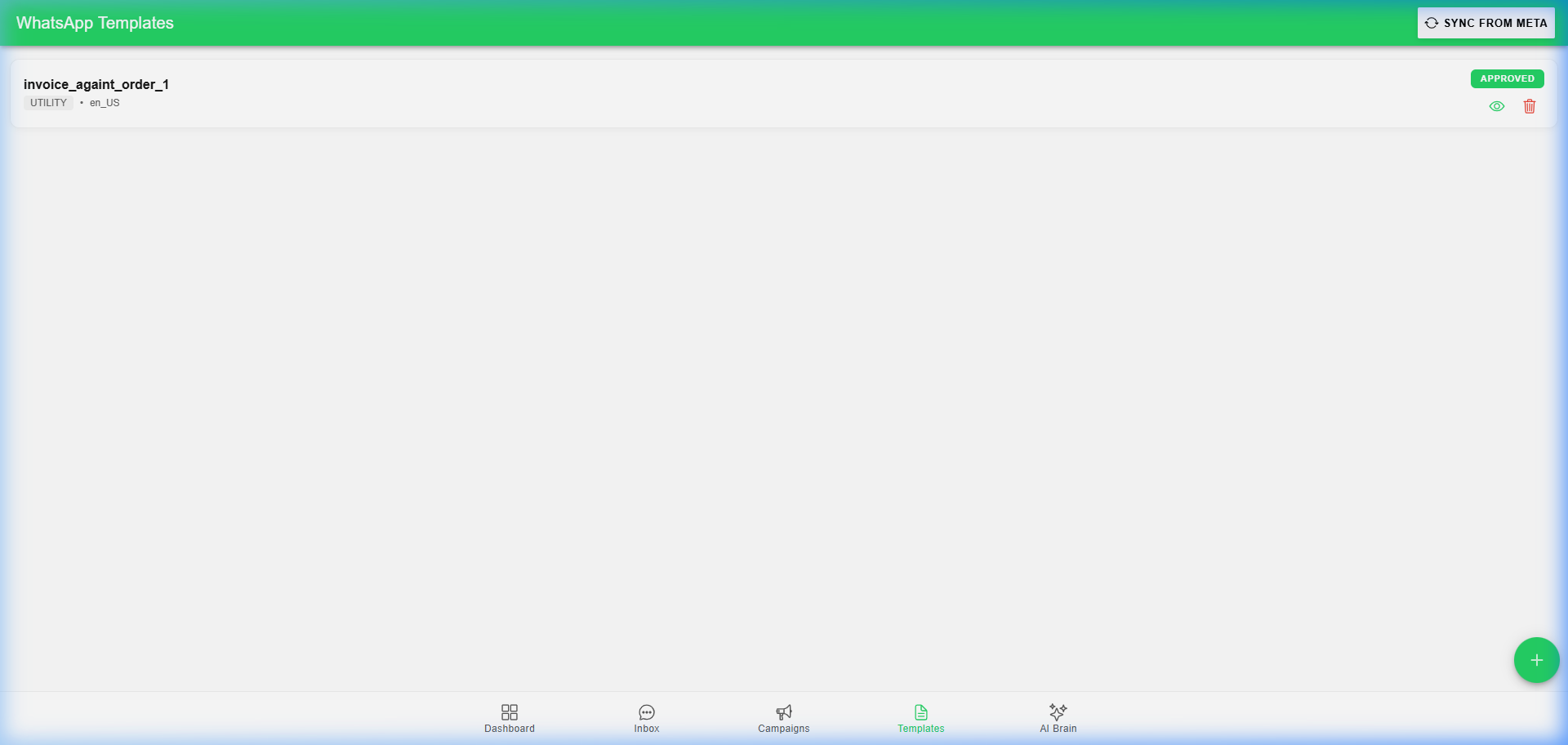
🏢 Business Owner's Guide (Non-Technical)
1. Why Templates?
Meta requires all "Business Initiated" messages (like marketing or order updates) to be pre-approved to prevent spam.
2. Creating a Template
- Navigate to Templates and click (+) New Template.
- Category: Choose from Marketing, Utility, or Authentication.
- Language: Select the language of your message.
- Body Content: Write your message. Use
{{1}},{{2}}for dynamic info like customer names or order IDs. - Buttons: Add "Quick Reply" or "Call to Action" buttons.
3. Approval Process
Once submitted, Meta's AI reviews the template. This usually takes 1 to 10 minutes.
- ✅ Approved: Ready to use in campaigns or bots.
- ❌ Rejected: Usually due to formatting or content policy violations.
🛠️ Technical Administrator's Guide (Deep-Dive)
1. Template Components
Templates are stored as a collection of components:
- HEADER: Text or Media (Image, Video, Document).
- BODY: The main text content.
- FOOTER: Optional small text at the bottom.
- BUTTONS: Interactive elements.
2. Parameter Mapping
When sending a template via API or Campaign, you must provide values for the placeholders.
- Sequential Mapping: Placeholders must be filled in order (
{{1}}then{{2}}). - Type Safety: Headers must match the approved type (e.g., if approved as "IMAGE", you cannot send a "PDF").
3. Syncing with Meta
HK Reach automatically syncs your template list from Meta every 10 minutes. You can force a sync by clicking the Refresh icon in the Template Manager.