Omnichannel Inbox
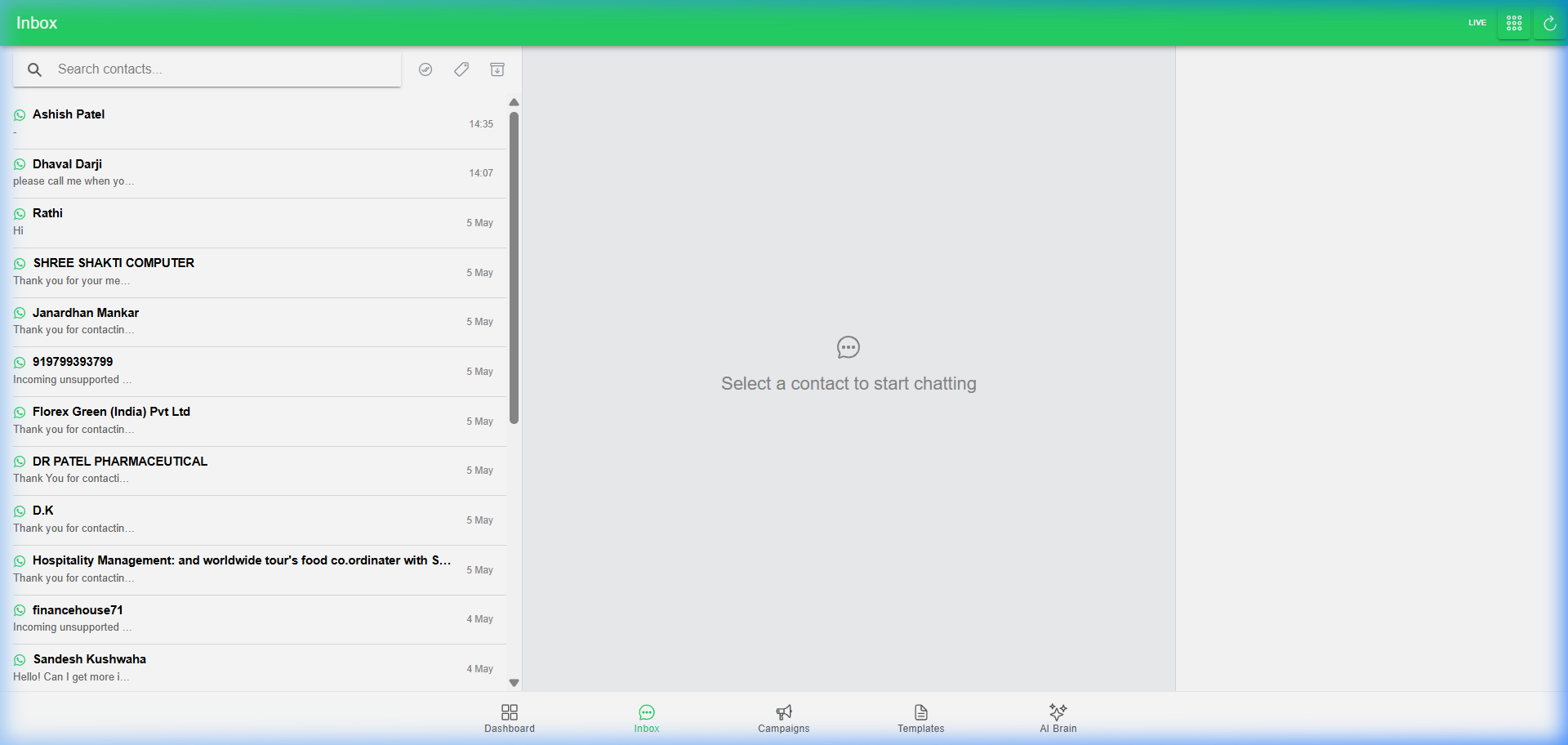
The Inbox is where you manage real-time conversations with your customers across WhatsApp, Facebook, and Instagram.
🏢 Business Owner's Guide (Non-Technical)
1. Unified Messaging
See all your messages in one place. Whether a customer messages you on WhatsApp or Instagram, it appears in this unified list.
2. The Chat Experience
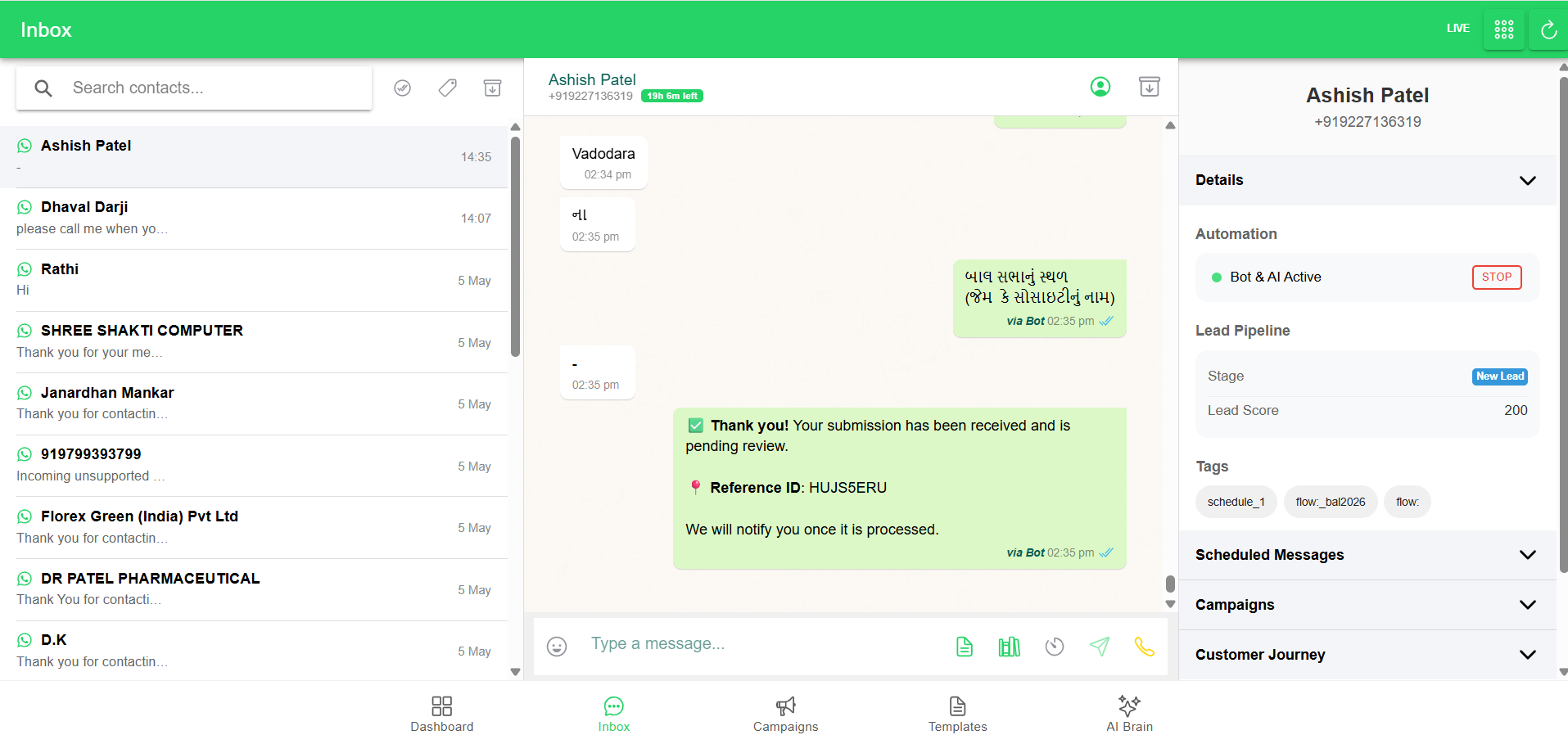
When you select a contact from the list, the center panel opens the Chatbox.
- Message History: Scroll up to view previous conversations.
- Real-time Typing: Messages appear instantly as customers type.
- Interactive Header: See the customer's name, phone number, and their current "Conversation Window" status (e.g., "21h 55m left").
3. Profile Sidebar & Customization
On the right side of the Inbox, you will find the Profile Sidebar.
- Contact Details: View and edit the customer's name and contact information.
- Lead Status: Directly update their stage in the Sales Pipeline.
- Tags: Add or remove tags to categorize the customer.
- Edit Details: Click the "Edit Details" button to open a full popup for advanced lead management (Notes, Reminders, Scoring).
4. Human Mode (Stop Auto Responses)
Sometimes you need to take over a conversation from the bot. You can control this in the Automation section of the Profile Sidebar:
- 🔴 Paused (Human Mode): The bot will NOT respond to this customer. This is useful for manual sales or support.
- 🟢 Active: The bot will automatically respond based on your rules.
- How to toggle: Click the "RESUME" or "PAUSE" button. The system automatically tags the contact with
stop_auto_replywhen paused.
5. Rich Messaging
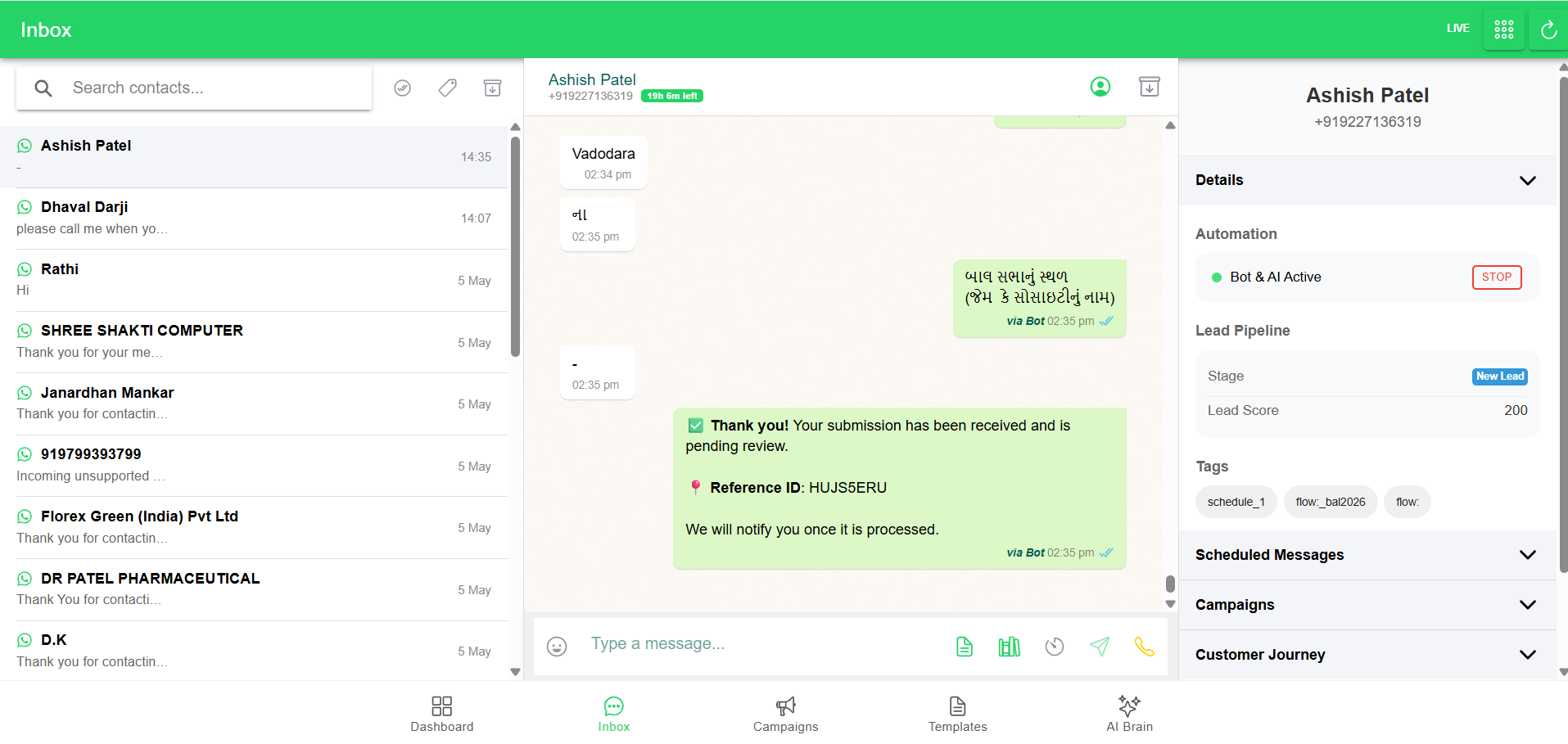
Send more than just text:
- Media: Attach images, videos, and documents.
- Templates: Quickly send pre-approved WhatsApp templates for common updates.
🛠️ Technical Administrator's Guide (Deep-Dive)
1. Real-time Synchronization
The Inbox uses SignalR to push new messages to the UI instantly without page refreshes.
2. Message History
All messages are logged in the MessageLog table.
- Direction:
IncomingorOutgoing. - Status:
sent,delivered,read.
3. Profile Auto-Hydration
When a new message arrives, HK Reach automatically attempts to capture the customer's Profile Name and Profile Picture from the Meta webhook payload.