Guide: Dashboard & Insights
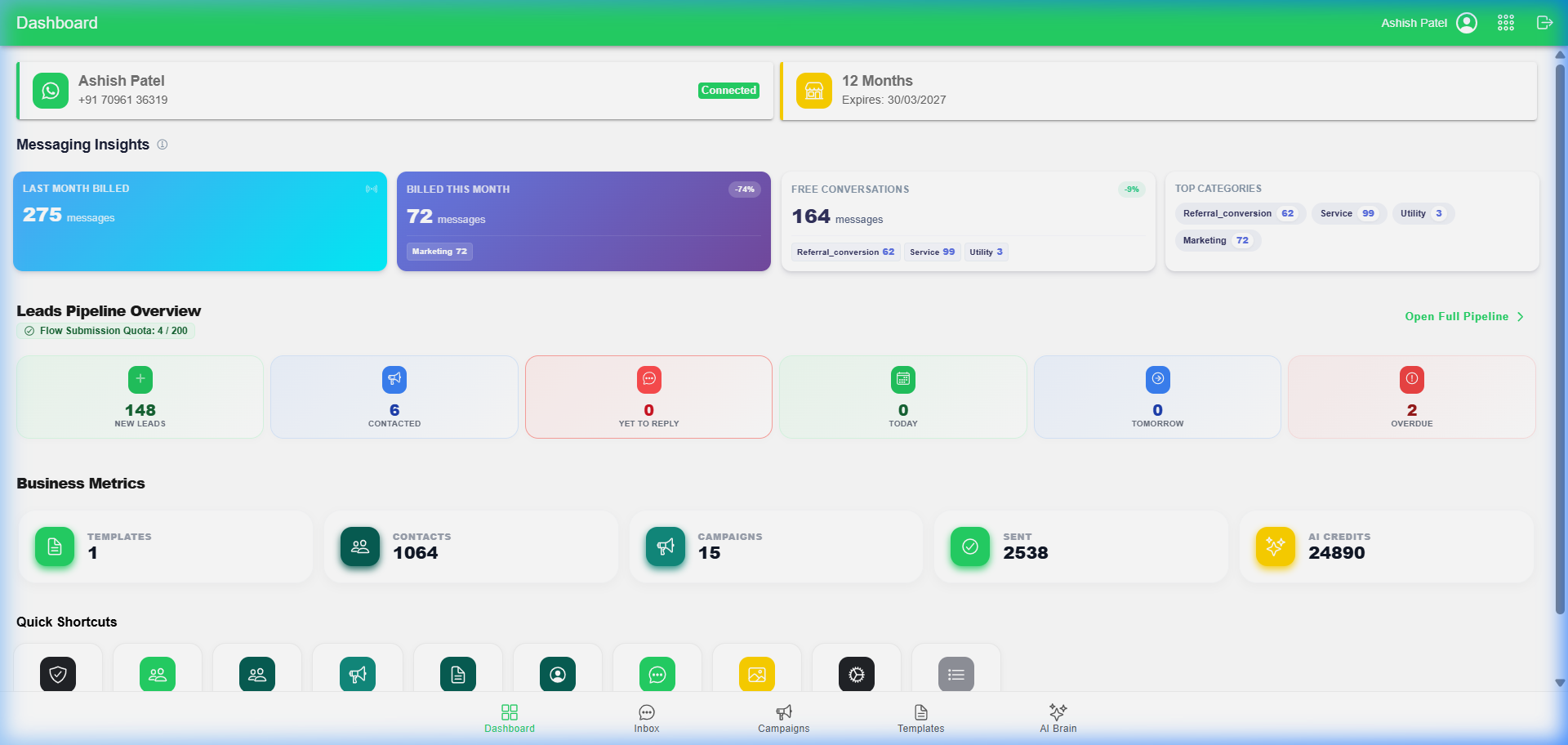
The Dashboard is the "Nerve Center" of HK Reach. It provides a real-time overview of your WhatsApp connectivity, sales pipeline health, and messaging costs.
🏢 Business Owner's Guide (Non-Technical)
1. Account & Subscription Status
At the top of your dashboard, you'll see two critical cards:
- WhatsApp Status: Shows if your number is currently Connected. If it says "Disconnected," please check your Meta settings.
- Active Plan: Displays your current subscription (e.g., "12 Months") and the Expiry Date.
2. Messaging Insights
Monitor your costs and conversation volume at a glance:
- Billed Messages: View how many messages were billed last month vs. this month.
- Free Conversations: Meta provides a set number of free service conversations every month. This card tracks how many you have left.
- Top Categories: See a breakdown of why customers are messaging you (e.g., Marketing vs. Utility vs. Service).
3. Leads Pipeline Overview
This section gives you a bird's eye view of your sales funnel:
- New Leads: Customers who just started a conversation.
- Yet to Reply: Important! These are leads waiting for a response from you.
- Follow-up Alerts: Real-time counts for Today, Tomorrow, and Overdue follow-ups.
- Submission Quota: Tracks how many "Bot Flow" submissions you've received against your monthly limit.
4. Business Metrics
Quickly see the scale of your operations:
- Total Contacts: The size of your customer database.
- Campaigns: Total number of broadcast campaigns sent.
- AI Credits: Your remaining balance for the AI Brain agent.
🛠️ Technical Administrator's Guide (Deep-Dive)
The dashboard aggregates data from multiple microservices to provide a unified view.
1. Data Aggregation Logic
Metrics are fetched via the AppClient/dashboard-stats endpoint, which calculates:
monthlyApprovedCount: Real-time count of approved lead submissions for the current billing cycle.messagesSentCount: Aggregate count from theMessageLogtable.aiCredits: Current balance from theClientCreditstable.
2. WABA Insights & Meta Sync
The "Messaging Insights" section fetches data from the WabaInsights table, which is synchronized with the Meta API:
- Categories: Maps Meta's conversation categories (
MARKETING,UTILITY,AUTHENTICATION,SERVICE) to visual charts. - Sync Frequency: Data is automatically synced daily, but admins can trigger a manual refresh via the Sync button in the Insights panel.
3. Real-time Status Monitoring
The Connected status is determined by the OnboardingStatus field in the AppClient model. This is updated via webhooks whenever the WhatsApp Business Account (WABA) status changes on Meta's side.
4. Quick Shortcuts
The shortcuts at the bottom are dynamically rendered based on the user's Role:
- Admin Panel: Only visible to users with the
AdminorCustomerAdminrole. - Manage Team: Visible to account owners to manage agent access.
- Bot Manager: Quick link to the
BotRulesconfiguration.
[!TIP] If your dashboard shows "0" for billing metrics, click the Messaging Insights info icon to trigger a manual sync with Meta.