Bot Rules
Bot Rules allow you to define how HK Reach should automatically respond when a customer sends a message.
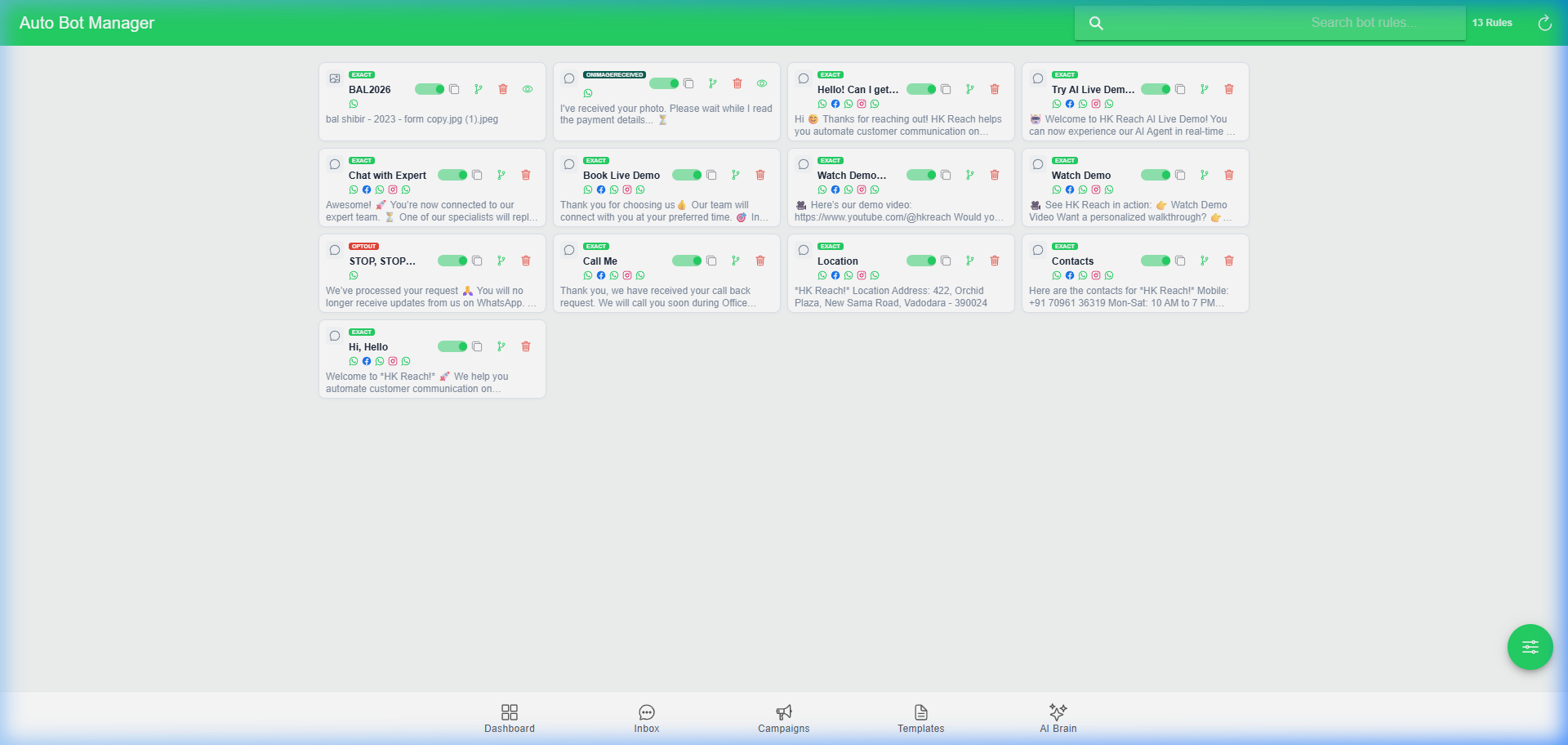
🏢 Business Owner's Guide (Non-Technical)
Step 1: Add a New Rule
- Go to the Bot Manager page.
- Click the (+) Add Rule button.
Step 2: Set the Trigger
- Trigger Keywords: Enter words like
Price,Menu,Help. - Match Strategy:
- Exact: Must match identical.
- Contains: Keyword appears anywhere in the message.
- Fallback: Runs if nothing else matches.
Step 3: Define the Response
- Response Type: Text, Image/Document, or Template.
- Interactive Buttons: Add up to 3 Quick Reply buttons or CTA buttons (URL/Phone).
Step 4: Custom Submission Messages
If you enable a Data Collection Flow, you can customize these status messages:
- Created: "Thanks! Your reference is #
{{ReferenceCode}}." - Approved: "We have verified your submission!"
- Rejected: "Sorry, we couldn't verify your data. Please try again."
Step 5: Sharing & Linking
Each rule with a keyword trigger can generate a WhatsApp Click-to-Chat Link.
- Format:
https://wa.me/{phone}?text={keyword} - You can find the "Share Link" button inside the rule editor.
🛠️ Technical Administrator's Guide (Deep-Dive)
1. The Match Engine
Evaluated in BotService in this priority:
- Exact Match: Bit-perfect comparison (case-insensitive).
- Starts With: Triggers if the user message begins with the keyword.
- Contains Match: Keyword appears anywhere in the string.
- Fallback (
MatchStrategy: Default): Executed if no other rule matches.
2. Response Payloads
- Text: Standard
messagesobject withtype: "text". - Interactive (Buttons): HK Reach supports up to 3 Quick Reply buttons or 2 CTA (Call-to-Action) buttons (URL + Phone).
- Media: Uses
type: "image"or"document"with amediaUrl. Files are automatically mirrored to local storage for reliability.
3. Template Parameters & Hydration
When using Meta Templates:
- Body Params: Sequential array
{{1}},{{2}}... mapped viatemplateParamsJSON. - Header Params: Can be static text or dynamic media. If media is chosen, the
mediaUrlfield provides the source.